

Free Cost and Payment Calendar Template for Excel
What will the project cost, when must we pay, and what is still outstanding?
A budget tells you how much you expect to spend. Payment deadlines tell you when you need the money. This Excel calendar brings both into view, with a separate log for actual payments and automatic overdue flags.
Record an invoice once, add payments as you make them, and let the workbook calculate the balance. No more guessing whether that supplier has been paid in full.
Download your cost and payment calendar
Choose a year and theme. Each workbook includes space for 100 cost items and 200 payments, a monthly calendar and an annual overview. The light and dark versions have the same features.
Excel .xlsx files. Sample entries are included so you can see how the calculations work. Replace them with your own project details.
What is in the workbook?
| Worksheet | What you can do |
|---|---|
| Calendar | Choose a month and year. See daily cost amounts, remaining balances due and actual payments. Check total outstanding, overdue balances and payments due today or in the next seven days. The annual overview shows the monthly totals. |
| Costs | List each invoice or instalment with its supplier, category, owner, cost date and payment deadline. Enter an estimate and, when known, an agreed amount. Paid amounts, balances, payment status and days overdue calculate automatically. |
| Payments | Record actual payments with their dates, amounts, references and matching Cost IDs. Add several payments against the same cost when needed. |
| Resources | Find links to related Stakeholdermap templates for budgets, cost management, procurement, decisions and issues. |
Three dates, three different jobs
A cost can fall in one month and be paid in another. Keeping the dates separate makes that difference visible.
- Cost date: when you schedule the cost in your project.
- Payment due: the deadline for paying that invoice or instalment.
- Payment date: when you actually make a payment.
For example, equipment scheduled for December may have a final payment due in January. The annual overview puts the cost in December and the payment due in January. Change the viewing year to see the following year's deadline.
Each calendar day shows amounts labelled Cost, Due and Paid. Due means the balance still unpaid at your review date. Once a cost is paid in full, its remaining balance disappears from the daily Due figure. The annual Payments due column still shows the full current amount scheduled for that month.
How to use the calendar
- Set up the Calendar sheet. Enter the project name, currency label, viewing month, viewing year and review date.
- Replace the example costs. Give each cost a unique Cost ID, such as CP001. Add its description, supplier, owner, dates and amount. Clear sample input cells without deleting the formula columns.
- Update agreed amounts. The workbook uses the agreed amount when you enter one. Otherwise, it uses the estimate. An agreed amount of zero is treated as zero.
- Log actual payments. Use a unique Payment ID for each payment and copy the relevant Cost ID from Costs. Enter the date, amount and reference.
- Check the results. Review overdue balances and the Entries to check total. Correct missing details, duplicate IDs or unmatched Cost IDs in the relevant sheet.
The lavender formula columns calculate the results. Use one currency and a consistent tax basis throughout. Changing the currency label does not convert any amounts.
How part payments work
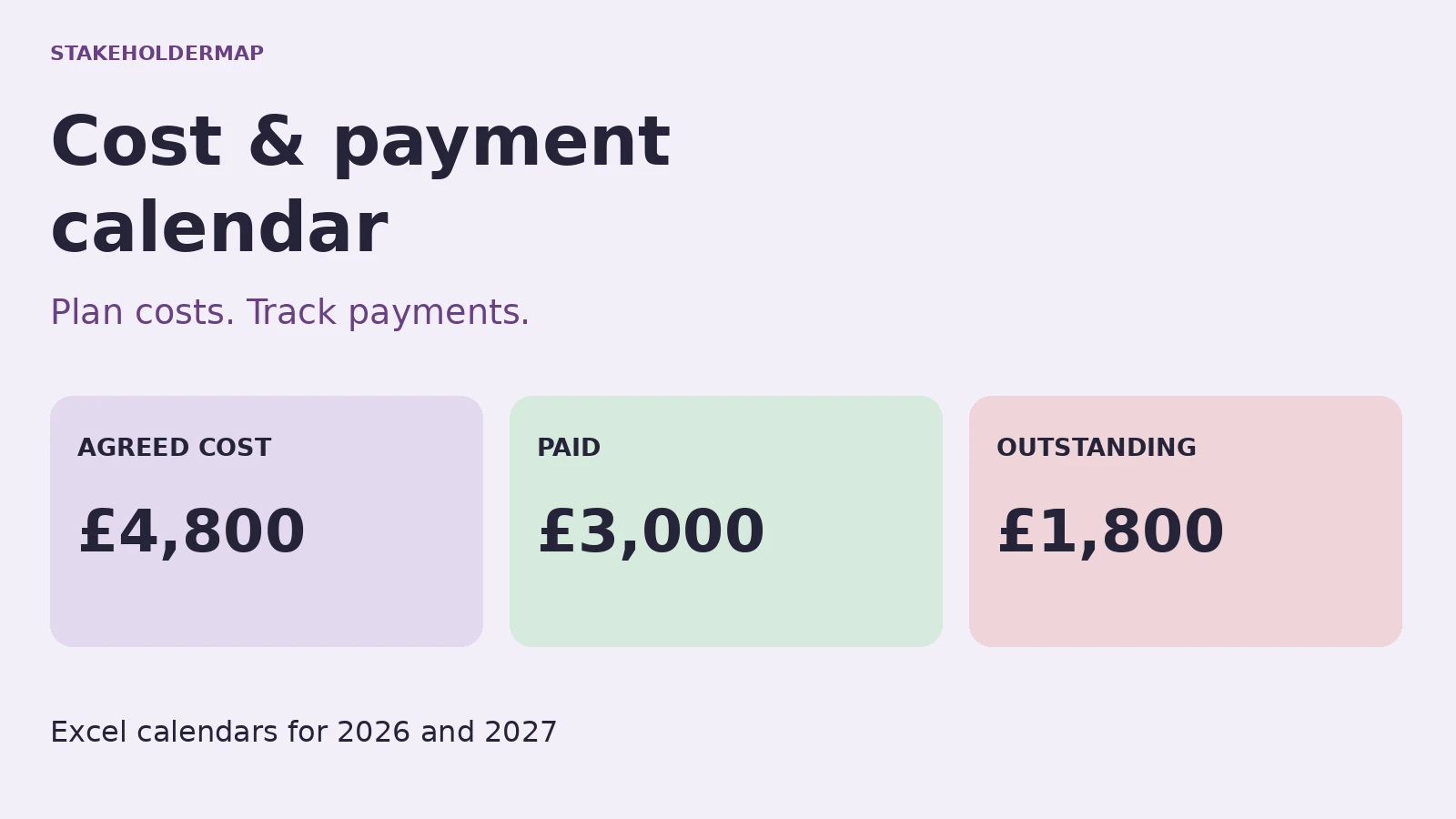
The sample equipment deposit has an agreed cost of £4,800. Two payment entries use the same Cost ID:
| Entry | Amount |
|---|---|
| Agreed cost | £4,800 |
| Payment on 15 October | £2,000 |
| Payment on 20 October | £1,000 |
| Outstanding balance | £1,800 |
The deadline was 16 October, so the remaining £1,800 is seven days overdue at the review date. Pay the balance and add that payment to the log. Once the review date includes it, the cost shows as Paid. If recorded payments exceed the current cost, the status changes to Overpaid.
Where a contract has several instalments with different deadlines, give each instalment its own cost row and Cost ID. This gives each payment deadline its own balance.
Using the review date
The review date controls which payments count and which balances are overdue. The examples use 23 October in the workbook's year. Set this to the date you are reviewing, or enter =TODAY() for a date that updates when Excel recalculates.
Payments after the review date are flagged and excluded from paid totals until that date is reached. Moving the sample review date back to 16 October, for example, excludes the second equipment payment made on 20 October.
The review date filters payments; it does not store a history of changes to cost amounts or deadlines. Save a dated copy when you need to keep a record of a particular review.
Frequently asked questions
Does the calendar show invoice descriptions?
The monthly calendar shows daily totals to keep it readable. Use the Costs and Payments sheets for supplier names, descriptions, IDs and references.
Why is total outstanding different from the annual total?
The summary includes outstanding costs from all years entered. The annual overview includes only the selected viewing year. A December cost with a January payment deadline can therefore appear in total outstanding without appearing in December's open balance.
Can I change the year?
Yes. The Calendar sheet has an editable viewing year. Changing it changes the calendar and annual overview, but does not change dates you have entered in Costs or Payments.
Can I record refunds?
The payment log accepts positive payments. It has no separate refund or credit-note workflow.
Does it send reminders or make payments?
No. It flags deadlines and balances inside Excel. Your team still approves invoices, makes payments and updates the log.