

Free Procurement and Supplier Calendar Template for Excel
What must we order or agree now to avoid delays later?
A delivery date is only useful if you leave enough time to choose the supplier, agree the contract and get the order placed. This Excel procurement calendar works backwards from the date you need an item ready for use, then shows the tender, evaluation, award, delivery and inspection deadlines.
Record what suppliers have promised alongside what the project needs. If the two dates do not agree, you can see the problem before the delivery lorry fails to arrive.
Download the Excel calendars See the previews
Download the procurement calendar
Choose your year and colour theme. Each workbook includes a monthly calendar, an annual summary, space for 60 procurement packages and 120 additional supplier commitments.
2027 calendars
The same planning tools in two colour themes.
Download 2027 light (.xlsx) Download 2027 dark (.xlsx)2026 calendars
The same planning tools in two colour themes.
Download 2026 light (.xlsx) Download 2026 dark (.xlsx)Includes example entries to replace with your own. No macros or public holidays are preloaded. Light and dark versions are separate files.
What is included?
| Worksheet | What it does |
|---|---|
| Calendar | Shows daily counts of procurement events and supplier promises. Choose a year and month, view all packages or enter one package ID, and check the annual totals below the calendar. |
| Procurement | Records each package, supplier, buyer, lead times and actual progress. Calculates target deadlines, the next action and delivery alerts. |
| Commitments | Tracks extra promises such as drawings, samples, certificates and revised submission dates. Includes an internal owner and a chase action. |
| Holidays | Lists holidays and closures to exclude from working-day calculations. |
| Resources | Provides page addresses for related stakeholdermap.com templates. |
Light and dark calendar previews
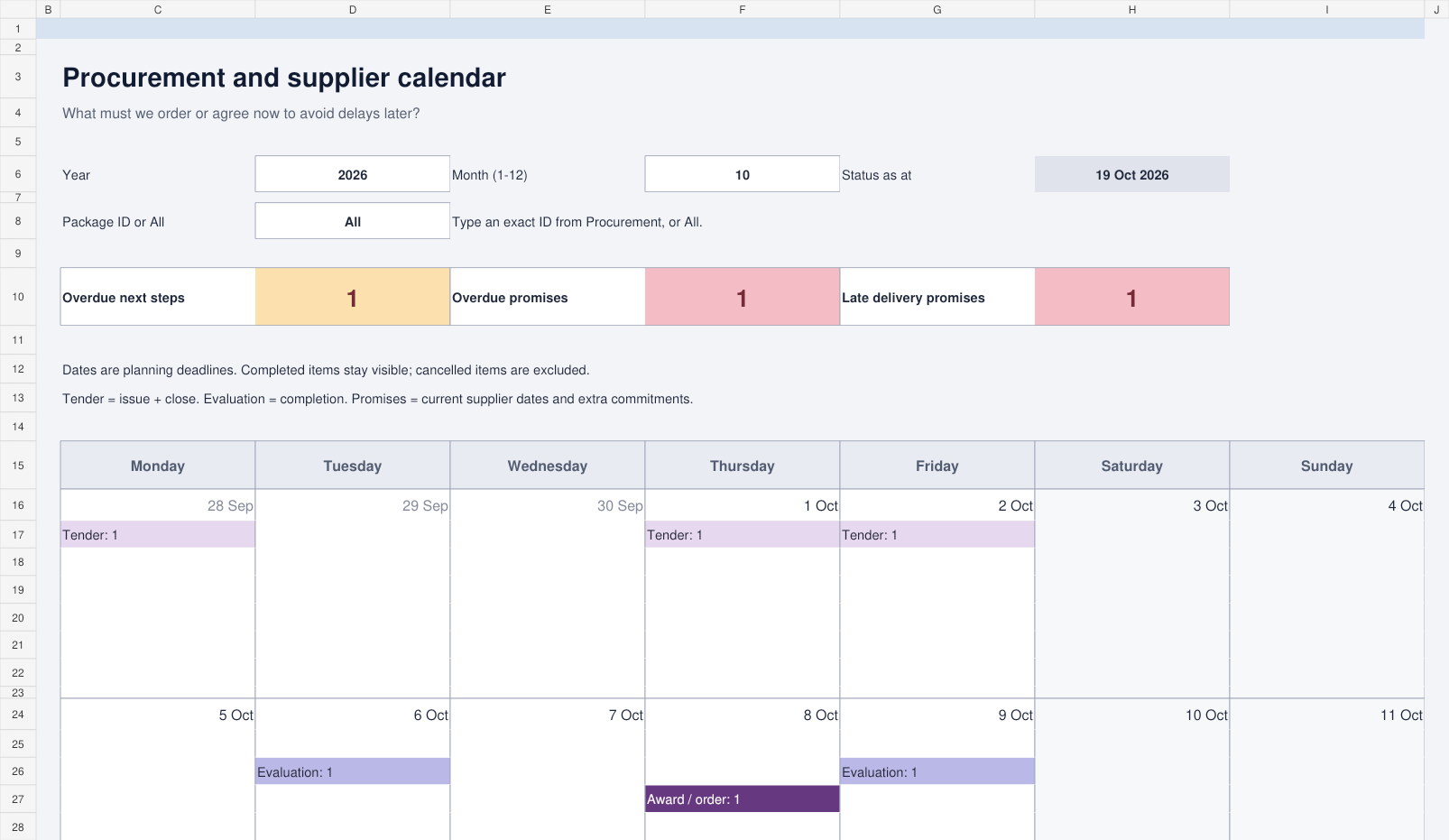
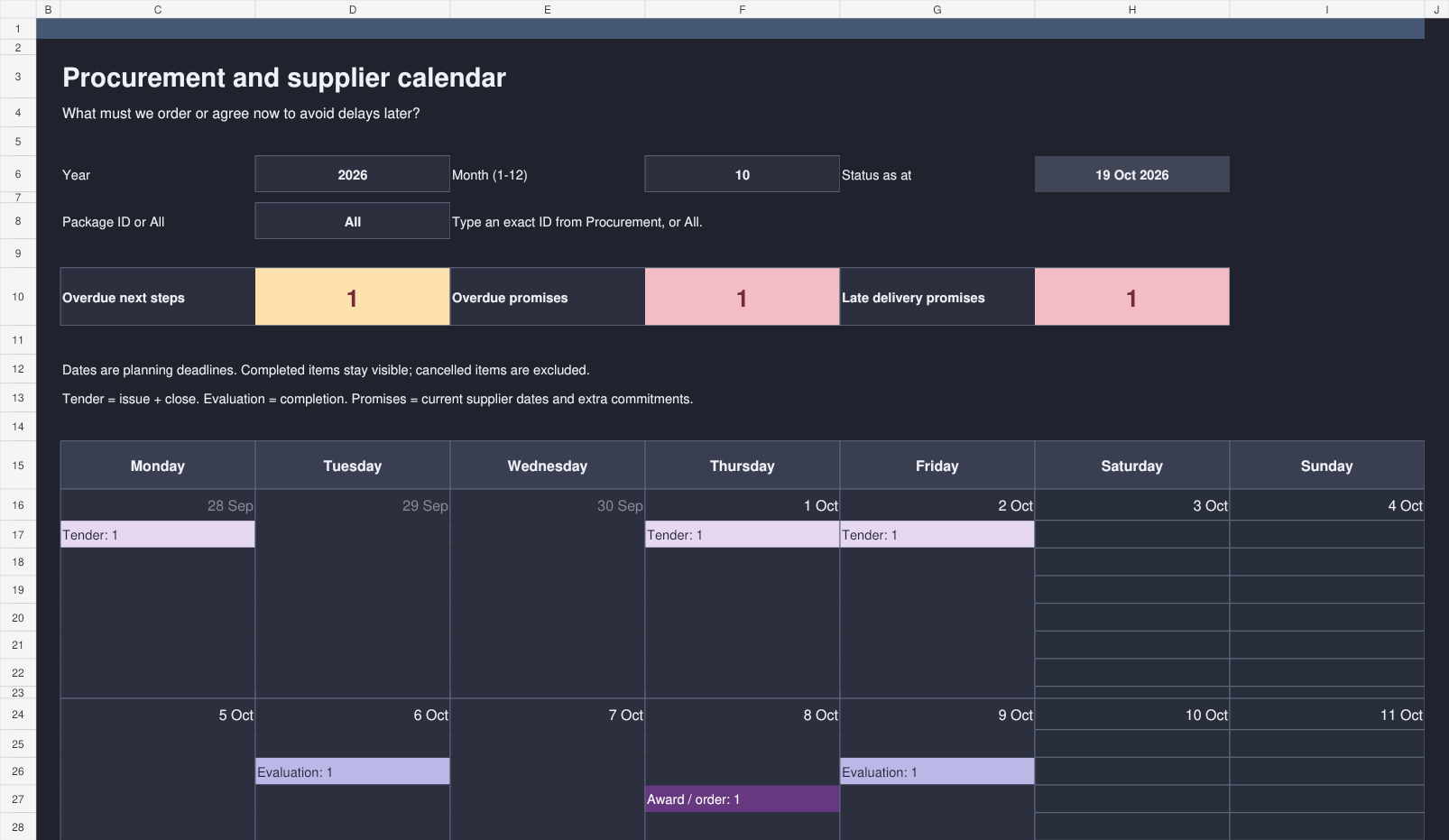
These extracts show the October 2026 example calendar. Select a preview to enlarge it.
Light theme
Dark theme
How to use the procurement calendar
- Add holidays and closures. Saturdays and Sundays are already excluded. Include the previous December if you are planning January deadlines.
- Create a procurement package. On Procurement, enter a unique package ID, item or work package, supplier and buyer or owner. Replace the example entries.
- Enter the ready-for-use date and lead times. Allow working days for inspection, supplier delivery, contract award, evaluation and tender responses. The pale purple columns calculate the deadlines.
- Record progress. Enter the actual tender, evaluation, award, delivery and inspection dates as work happens. Add the supplier's promised delivery date and inspection result.
- Add other supplier promises. Use Commitments for drawings, samples or certificates. Keep the same package ID so the calendar filter can find them.
- Review the next actions. Choose your month on Calendar, check the overdue totals and use the registers to see what needs chasing and who owns it.
How the calendar calculates procurement deadlines
Start with the date the item must be ready for use. The workbook subtracts each lead time in turn, excluding weekends and the dates on Holidays.
Suppose equipment must be ready on Friday 30 October 2026. Allow two working days for inspection, ten for the supplier, three for contract award, five for evaluation and ten for tender responses.
| Checkpoint | Deadline | Working backwards |
|---|---|---|
| Issue tender | 18 September 2026 | 10 working days before tender close |
| Close tender | 2 October 2026 | 5 working days before evaluation is complete |
| Complete evaluation | 9 October 2026 | 3 working days before award |
| Award contract / place order | 14 October 2026 | 10 working days before delivery |
| Delivery required | 28 October 2026 | 2 working days before ready for use |
| Ready for use / inspection due | 30 October 2026 | The date you enter |
This example assumes no holidays. A supplier promising delivery on 29 October is already one day later than the plan allows, even though the equipment is not needed until 30 October. That missing inspection day matters.
Track what suppliers have actually promised
Keep the required delivery date and the supplier's promise separate. The Procurement sheet flags promises that fall after the required date, overdue supplier deliveries and missed required dates. It also records whether an actual delivery arrived late.
For other commitments, enter the original due date and put any new agreement in Revised due. The revised date drives the calendar and timing alert, while the original-promise column keeps the earlier commitment visible. Moving a deadline should not erase the history.
Enter an Actual completed date to close a commitment. Add the next chase action and an internal owner so a red alert leads to a conversation, rather than another week of looking at a red alert.
Frequently asked questions
Are lead times working days or calendar days?
Planning lead times use working days, excluding Saturdays, Sundays and your Holidays list. The “due within 7 days” alerts and days-overdue count use calendar days. If a supplier quotes a lead time in calendar days, agree the delivery date and translate the planning allowance accordingly.
Does a revised promise move the procurement plan?
No. Target procurement dates come from the ready-for-use date and lead times. Enter the supplier's promise separately to compare it with the plan. On Commitments, a revised due date does become the current deadline for that commitment.
Can I use it for services as well as goods?
Yes. A package can be equipment, materials or a service. Use the ready-for-use date for the required handover or acceptance date, and set any unnecessary planning duration to zero.
Does the calendar show the full item names?
The calendar shows counts by event type. Filter to a package ID to focus the view, then use Procurement and Commitments for the item details, owners and actions.
Is this a purchasing or accounting system?
It is a planning and follow-up workbook. Use your purchasing system for purchase orders, payments and stock records.
Related project templates
- Procurement management plan: agree how you will buy and manage suppliers.
- Decision log: record selection and award decisions.
- Issue log: assign actions when supplier problems need resolving.
- Risk register: plan for delays and supplier risks.
- Lessons learned template: improve your next procurement.
- Browse all project management templates.