

Excel Data Validation Bug? How Fill Down Can Bypass Dropdown Lists
Excel data validation looks like a sensible control. You create a dropdown list, users select from the approved options, and your data stays neat, tidy and obedient. Lovely.
Except, of course, this is Excel, so there is a trapdoor.
A dropdown list can stop someone typing a rogue value directly into a cell, but it does not fully stop invalid values getting into the sheet. One way through the fence is Excel's fill handle. Drag down from a valid-looking value and Excel may continue the sequence, creating values that are not in the dropdown source at all.
So yes, your spreadsheet may have a dropdown. No, that does not mean the column only contains dropdown values.
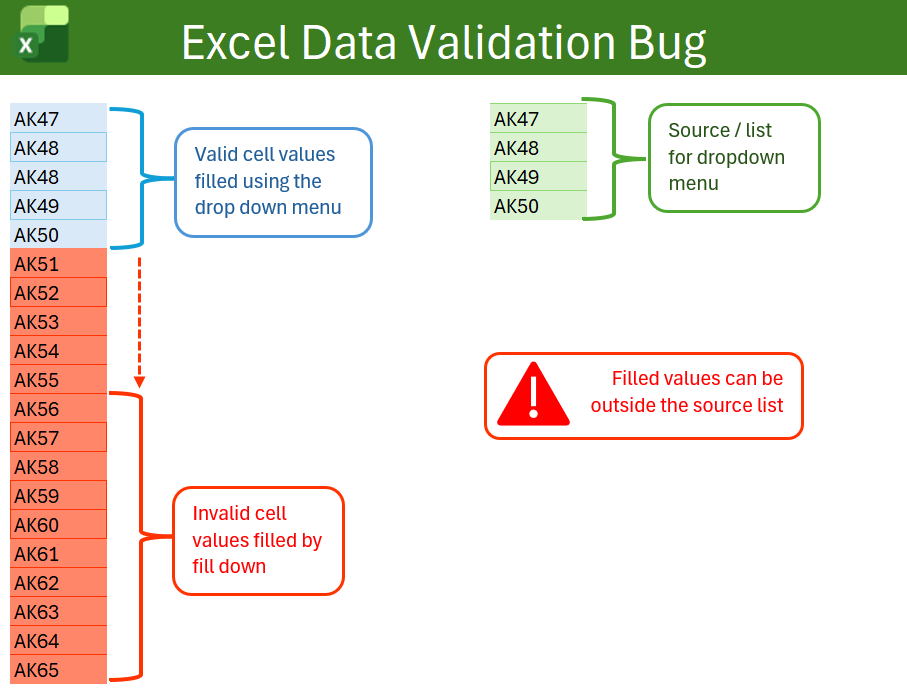
The example: AK47 to AK65
In this example, the dropdown source contains only:
- AK47
- AK48
- AK49
- AK50
That should mean the validated column only accepts those four values. That is the whole point of the dropdown.
But if the user drags down using the fill handle, Excel can continue the sequence and create:
- AK51
- AK52
- AK53
- AK54
- AK55
- AK56
- AK57
- AK58
- AK59
- AK60
- AK61
- AK62
- AK63
- AK64
- AK65
None of those values are in the dropdown source. Yet there they are, sitting in the validated column like they own the place.
Is this an Excel bug?
It looks like a bug. It behaves like a bug. It certainly smells like one when you discover your supposedly controlled column is full of rogue values.
But technically, it is better described as a limitation of Excel data validation rather than a true software bug.
Microsoft's own guidance says that data validation is designed to show messages and prevent invalid entries only when users type directly into a cell. Microsoft also says validation messages do not appear, and invalid data can be entered, when data is copied or filled, when a formula calculates an invalid result, or when a macro enters invalid data.
That is the important bit. Excel is not secretly checking every possible route into the cell and slamming the door. It mainly guards the front entrance. Fill down, copy and paste, formulas and macros can all sneak round the side.
Why this is dangerous
This matters because data validation creates a false sense of security. The spreadsheet looks controlled. The cell has a dropdown. The user sees approved choices. Everyone relaxes.
Then someone drags the fill handle, pastes a block of data, or uses a formula, and suddenly your controlled field is contaminated.
The damage usually appears later, when the spreadsheet is used for something less forgiving than casual data entry.
- A lookup fails because the value is not in the reference table.
- A pivot table shows unexpected categories.
- A report includes values that should not exist.
- A Power Query import produces messy exceptions.
- A system upload fails because the spreadsheet contains illegal codes.
- Someone spends half a day cleaning data that was supposedly validated.
This is why Excel is such a gifted chaos machine. It lets you build a control, decorate it with a dropdown arrow, then quietly allows users to tunnel underneath it.
What Microsoft says
Microsoft's support page on data validation includes a section on why data validation may not work as expected. One of the listed reasons is that users may be copying or filling data. Microsoft explains that data validation is intended to display messages and prevent invalid entries only when users type data directly into a cell.
Microsoft gives a prevention option: turn off the fill handle and cell drag-and-drop setting, then protect the worksheet. In Excel for desktop, this setting is found under:
File > Options > Advanced > Editing options > Enable fill handle and cell drag-and-drop
That is a pretty drastic option for many workbooks, because the fill handle is also one of Excel's most useful features. Turning it off globally just to protect one dodgy dropdown may feel like banning all cutlery because someone once abused a spoon.
Microsoft also has a separate feature called Circle Invalid Data. This can highlight cells that do not meet their validation criteria, including values that were typed, copied, filled, calculated by formulas, or entered by macros.
How to check for invalid values
To check a worksheet for invalid values:
- Select the cells you want to check.
- Go to the Data tab.
- In the Data Tools group, open the Data Validation dropdown.
- Choose Circle Invalid Data.
Excel will circle cells that break the validation rule. This is useful, but it is a detection tool, not a prevention tool. It tells you the horse has bolted. Helpful, but still not a stable door.
A better way to flag invalid dropdown values
For a live spreadsheet, I would not rely only on Excel's built-in validation warning. Add a check column or conditional formatting rule that compares the entered value against the source list.
For example, if your entered value is in F2 and your approved source list is in H2:H5, a helper check could use:
=IF(COUNTIF($H$2:$H$5,F2)=0,"Invalid","OK")That formula asks a simple question: does the value in F2 exist in the approved list? If not, flag it.
You can then filter for Invalid, use conditional formatting to colour the bad cells, or block the data from being used in reports until the problem is fixed.
Conditional formatting option
You can also use conditional formatting to highlight invalid values directly.
Assuming your data starts in F2 and the approved list is in H2:H5, select the data-entry range and create a conditional formatting rule using a formula like:
=COUNTIF($H$2:$H$5,F2)=0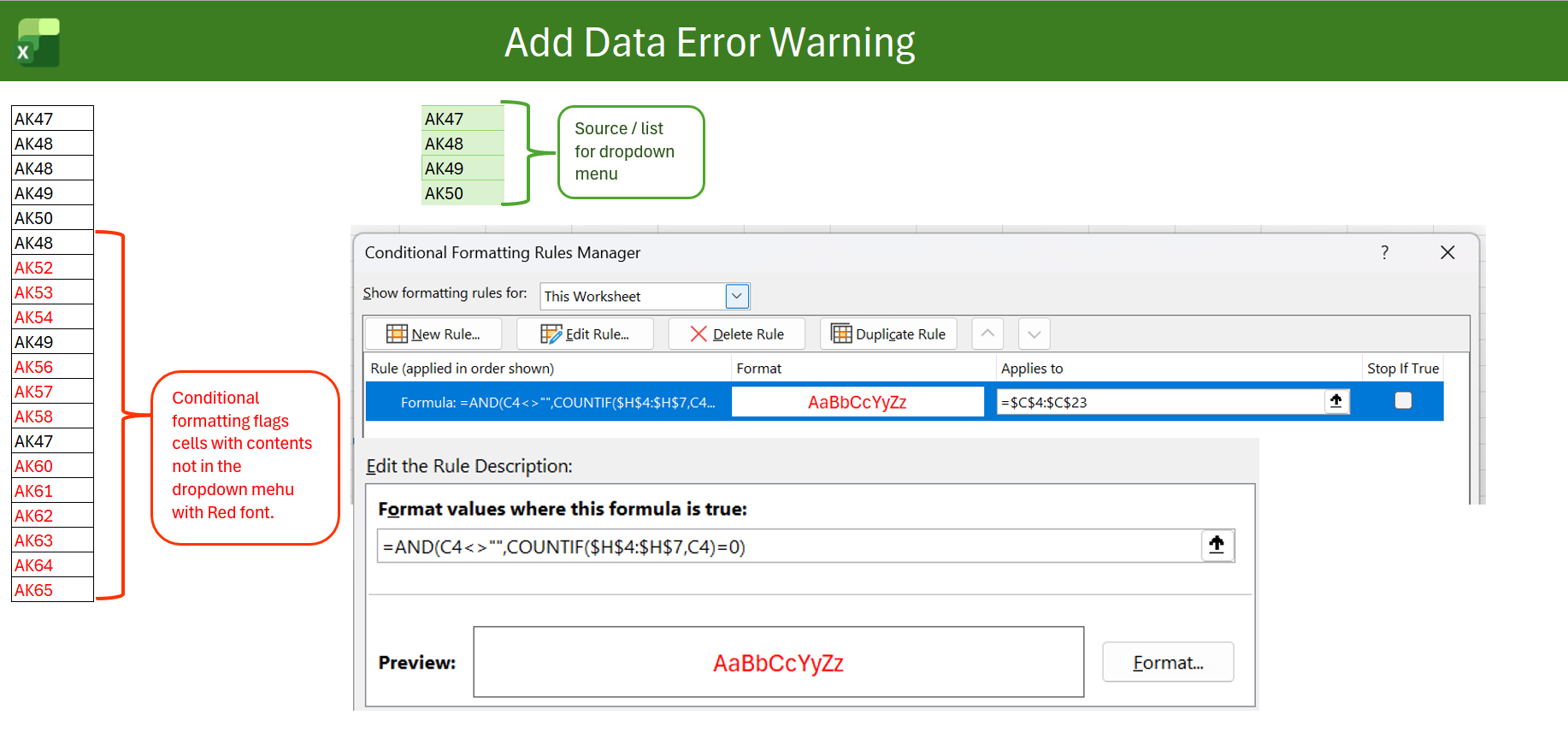
Then choose a warning format, such as a red fill or red font. The moment a value appears that is not in the source list, the cell is highlighted.
This is often more useful than relying on users to run Circle Invalid Data, because the error is visible immediately. It also makes the spreadsheet harder to misunderstand. Invalid values are not politely ignored; they are exposed.
How to reduce the risk
There is no single perfect fix, because Excel is not a database and will punish you for pretending it is one. But you can reduce the risk.
- Use data validation dropdowns to guide users towards approved entries.
- Add conditional formatting to highlight values not found in the source list.
- Add a helper check column so invalid entries can be filtered and reviewed.
- Use Circle Invalid Data as a final check before reporting or importing.
- Protect the worksheet where practical, especially if the workbook is used by multiple people.
- Consider disabling fill handle and drag-and-drop only where the risk justifies the inconvenience.
- Use a proper data-entry form or database if the data is business-critical.
When this matters most
This loophole is annoying in any spreadsheet, but it becomes dangerous when the file feeds another process.
Be extra cautious if the spreadsheet is used for:
- student records;
- finance data;
- HR data;
- stock or inventory lists;
- system imports;
- management reports;
- Power BI dashboards;
- Power Query transformations;
- SharePoint list uploads;
- anything where a rogue category will cause a mess later.
A dropdown list is fine for guidance. It is not a robust control for business-critical data.
The real lesson
Excel data validation is useful, but it is not a force field. It helps users enter valid data when they behave nicely. It does not guarantee that every value in the cell came from the dropdown list.
That distinction matters.
If the data matters, do not just add a dropdown and declare victory. Add checks. Highlight invalid values. Review the data before reporting. Treat Excel validation as a helpful nudge, not a security system.
Because the spreadsheet may look controlled, but Excel is still Excel. Give it half a chance and it will manufacture AK65 out of a dropdown list that stopped at AK50.