

Excel Icon Sets Not Working with Percentages? Here's Why
Excel's icon sets can be extremely useful. Traffic lights, arrows, flags and ratings make it possible to scan a spreadsheet quickly and spot values that need attention.
They are especially tempting when you are working with percentages. For example, you might want a red traffic light below 80%, an amber traffic light from 80% to below 100%, and a green traffic light at 100% or above.
That sounds simple enough. Unfortunately, Excel's conditional formatting icon sets can behave in a way that looks completely wrong when percentage values are involved.
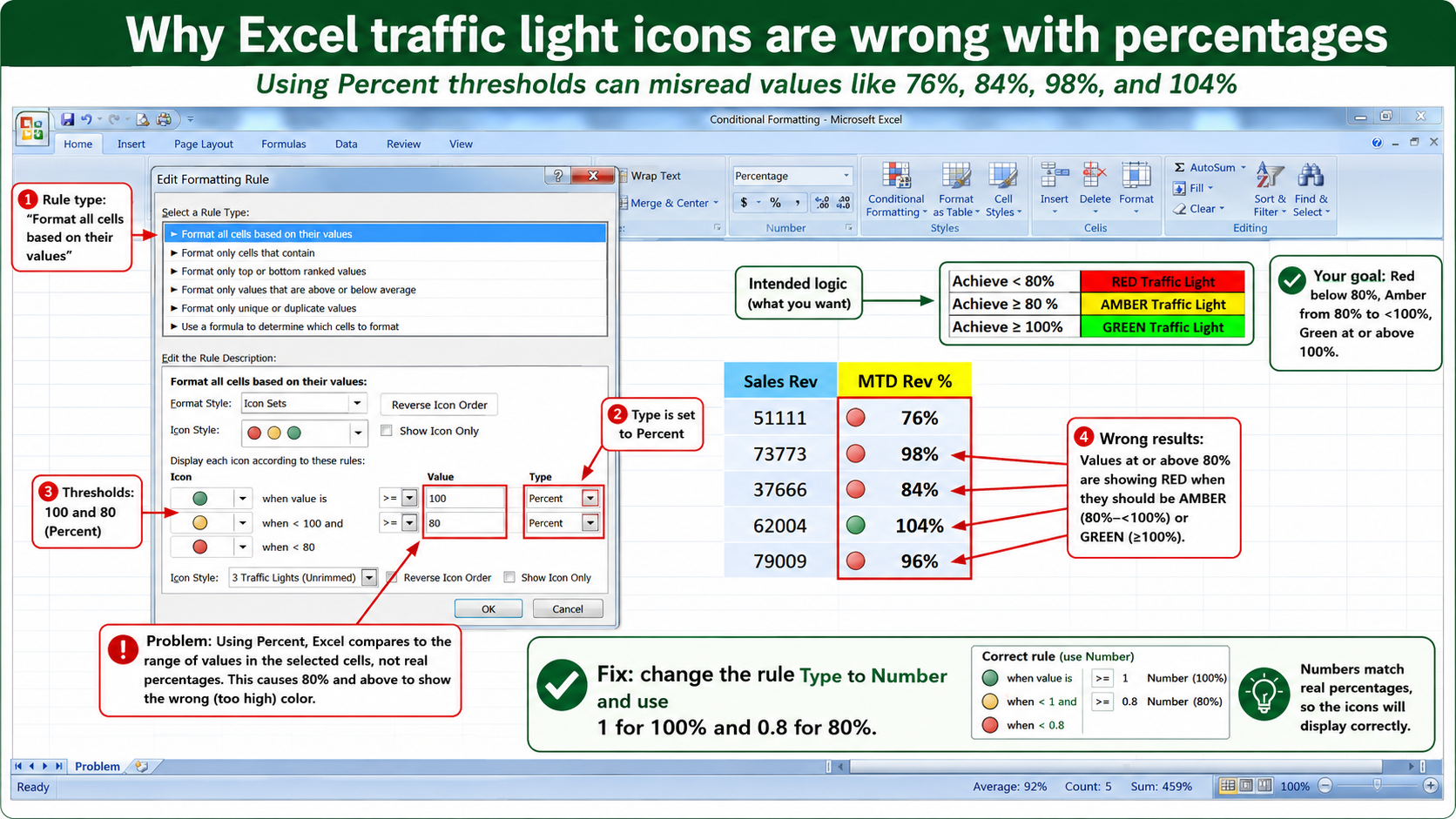
You create a rule expecting values greater than or equal to 80% to show an amber or yellow icon, but Excel displays a red icon instead. The values in the cells look correct. The conditional formatting rule looks plausible. Yet the icons do not match the logic you thought you had created.
The problem is usually not the percentage values in the worksheet. The problem is the meaning of Percent inside the icon set rule.
The Symptoms
Here is the typical problem. You have a column of percentage values, perhaps showing performance against target, completion percentage, sales achievement or progress against plan.
You want the icons to behave like this:
| Value | Expected icon | Meaning |
|---|---|---|
| Less than 80% | Red | Below acceptable level |
| 80% to less than 100% | Amber / yellow | Close, but not fully achieved |
| 100% or above | Green | Target achieved or exceeded |
But when you apply the icon set, values that should be amber show as red. In some cases, almost everything looks red even though the percentages are clearly above 80%.
This is confusing because the worksheet values themselves are not wrong. A cell displaying 84% really is 84%. A cell displaying 98% really is 98%. The issue is how the icon set rule is interpreting the thresholds.
The Common Mistake
The mistake is setting the icon set thresholds to Percent and then entering values such as 80 and 100.
That seems logical because you are working with percentages. If you want the amber icon to start at 80%, it feels natural to enter 80 and choose Percent.
However, in an Excel icon set rule, Percent does not mean “compare this cell to 80%” in the ordinary sense.
Instead, Percent means Excel calculates the threshold as a percentage of the spread of values in the selected range. In other words, the rule is based on the distribution of the values, not the percentage number that is displayed in the cell.
Why Percent Does Not Mean What You Think It Means
This is the key point:
In an icon set rule, Percent is a relative threshold based on the selected range. It is not the same as saying “80%” as a worksheet value.
For normal spreadsheet use, 80% means 0.8. That is the actual value stored in the cell. Excel displays it as 80% because the cell has percentage formatting.
For example:
| Displayed value | Actual stored value |
|---|---|
| 50% | 0.5 |
| 76% | 0.76 |
| 80% | 0.8 |
| 98% | 0.98 |
| 100% | 1 |
| 104% | 1.04 |
Most of the time, Excel hides this from you. You type 80%, Excel stores 0.8, and everything works as expected.
Conditional formatting icon sets are one of the places where this difference matters. If you tell Excel that the icon set threshold type is Percent, Excel is no longer simply comparing each cell to the actual number 0.8. It is applying a relative calculation across the selected range.
A Simple Example
Imagine your percentage values are:
| Displayed value | Stored value |
|---|---|
| 76% | 0.76 |
| 84% | 0.84 |
| 96% | 0.96 |
| 98% | 0.98 |
| 104% | 1.04 |
Your human interpretation is straightforward:
- 76% should be red because it is below 80%.
- 84%, 96% and 98% should be amber because they are at least 80% but below 100%.
- 104% should be green because it is at least 100%.
But if the icon rule uses Percent as the threshold type, Excel may not apply that logic. It may decide the icons based on where each value sits within the selected range. That is why values that look safely above 80% can still be given the wrong icon.
The Fix: Use Number, Not Percent
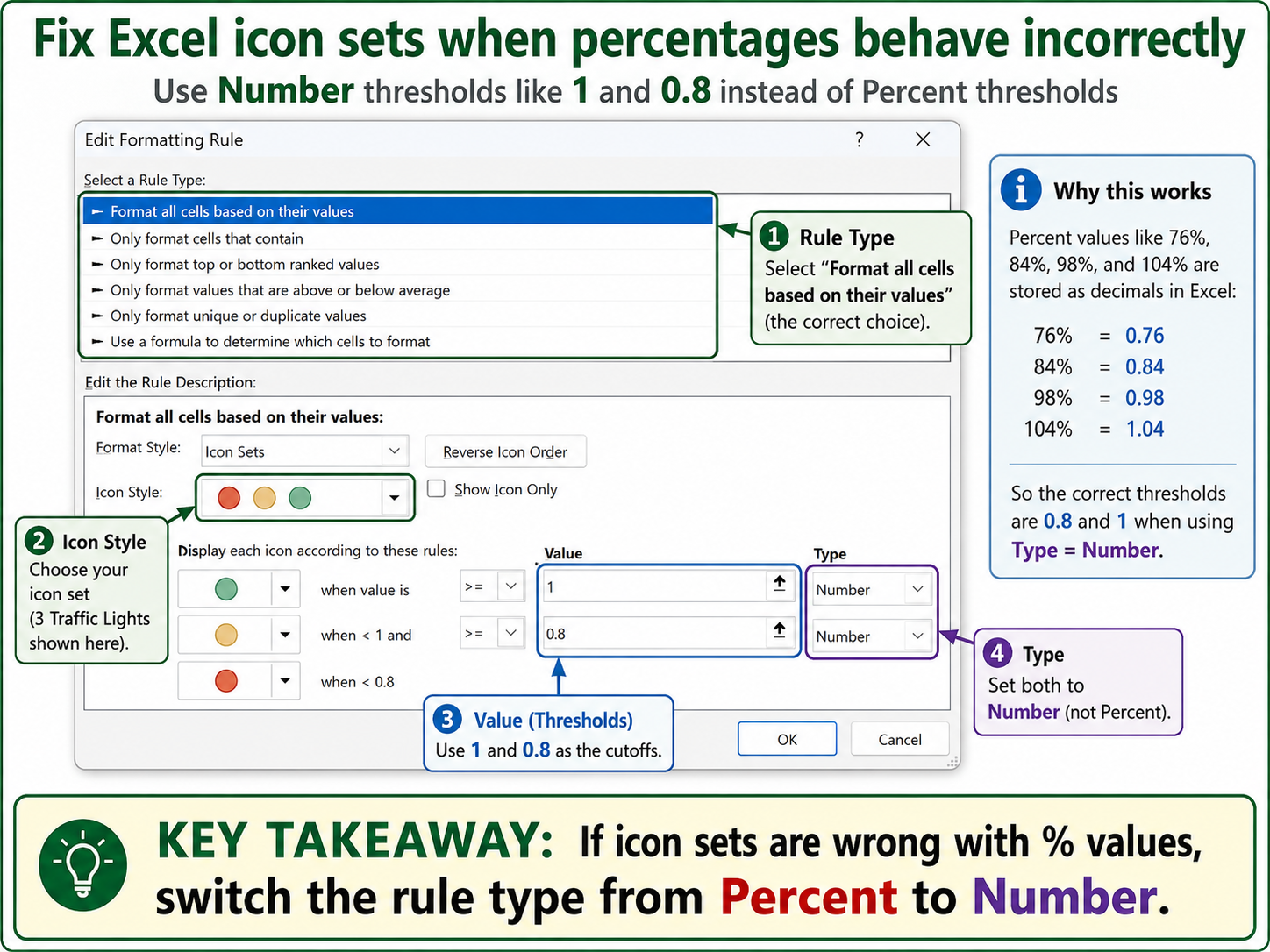
To fix the problem, edit the conditional formatting rule and change the threshold type from Percent to Number.
Then enter the actual decimal values Excel stores behind the percentage formatting.
| What you mean | Enter this as the number value |
|---|---|
| 80% | 0.8 |
| 90% | 0.9 |
| 95% | 0.95 |
| 100% | 1 |
| 110% | 1.1 |
For the common red, amber and green traffic light example, the rule should be set up like this:
| Icon | Rule | Type |
|---|---|---|
| Green | When value is greater than or equal to 1 | Number |
| Amber / yellow | When value is less than 1 and greater than or equal to 0.8 | Number |
| Red | When value is less than 0.8 | Number |
This tells Excel to compare the actual stored values in the cells. A displayed value of 84% is stored as 0.84, so it is correctly treated as greater than 0.8 and less than 1. A displayed value of 104% is stored as 1.04, so it is correctly treated as greater than 1.
Step-by-Step: How to Correct the Icon Set Rule
To correct an existing icon set rule:
- Select the cells that contain the percentage values.
- Go to Home > Conditional Formatting.
- Choose Manage Rules.
- Select the icon set rule and click Edit Rule.
- In the rule settings, find the Type dropdowns.
- Change the threshold types from Percent to Number.
- Enter decimal threshold values, such as 1 for 100% and 0.8 for 80%.
- Click OK, then apply the rule.
If the icons now match your intended red, amber and green logic, the problem was the threshold type.
Why 1 Means 100%
This is the part that often feels odd at first. If you are looking at a cell that displays 100%, entering 1 in the rule may feel wrong.
However, in Excel:
100% = 1
80%  = 0.8
50%  = 0.5
25%  = 0.25
The percentage sign is formatting. It changes how the value is shown, not the underlying number used in calculations.
You can see this by selecting a cell formatted as a percentage and looking at the formula bar. Depending on how the value was entered, you may see the decimal value behind the displayed percentage.
When Should You Use Percent in Icon Sets?
There are times when Percent is useful in icon sets. It is useful when you want Excel to divide the selected values into relative bands.
For example, you might use Percent if you want to highlight:
- the top third of values with a green icon;
- the middle third with an amber icon;
- the bottom third with a red icon.
In that case, you are not saying “green means at least 100%”. You are saying “green means high compared with the other values in this selected range”.
That is a completely different type of rule.
| Use this type | When you mean | Example |
|---|---|---|
| Number | Compare each cell to a fixed value | Green if value is at least 100% |
| Percent | Compare each cell to its position within the selected range | Green for the highest values in this range |
| Percentile | Compare values by percentile ranking | Green for values above a certain percentile |
| Formula | Use a custom test | Green only if several conditions are true |
For performance thresholds, targets, pass marks, completion percentages and traffic light reporting, Number is usually the safer choice.
Percent vs Number: The Practical Difference
The easiest way to think about it is this:
| Rule type | Question Excel is answering |
|---|---|
| Number | Is this cell value greater than or equal to 0.8? |
| Percent | Where does this value sit within the spread of selected values? |
Those are not the same question.
If your report is supposed to use fixed business rules, such as “below 80% is red”, use Number.
If your report is supposed to show relative ranking, such as “the lowest values in this list are red”, Percent may be appropriate.
Checklist for Fixing Percentage Icon Sets
If your icon sets are behaving strangely, check the following:
- Are the cells formatted as percentages?
- Are the underlying values decimals, such as 0.8 for 80%?
- Is the icon set threshold type set to Percent?
- Should the rule actually be using Number?
- Have you entered 0.8 rather than 80?
- Have you entered 1 rather than 100?
- Is the rule applied to the correct range of cells?
- Are there any other conditional formatting rules above it?
The last two points are worth checking because conditional formatting problems can also be caused by the wrong range, duplicated rules or rule order. However, when percentages and icon sets are involved, the Percent versus Number setting is one of the most common causes.
Common Mistakes
Entering 80 instead of 0.8
If the rule type is Number, entering 80 means eighty, not eighty percent. A cell containing 84% is stored as 0.84, so it will not be greater than or equal to 80.
For 80%, use:
0.8Using Percent because the cells display percentages
This is the mistake that causes the most confusion. The cells may display percentages, but that does not mean the icon set rule should use the Percent threshold type.
Use Number when you want a fixed threshold such as 80%, 90% or 100%.
Forgetting that 100% is 1
For a green traffic light at 100% or above, the threshold should usually be:
1not:
100Applying the rule to the wrong range
If the conditional formatting rule is applied to the wrong cells, Excel may appear to give strange results. Always check the Applies to range in Conditional Formatting Rules Manager.
Quick Reference
| Desired threshold | Use this value with Type = Number |
|---|---|
| 10% | 0.1 |
| 25% | 0.25 |
| 50% | 0.5 |
| 75% | 0.75 |
| 80% | 0.8 |
| 90% | 0.9 |
| 95% | 0.95 |
| 100% | 1 |
| 110% | 1.1 |
The Simple Rule
If your cells contain percentages and you want fixed thresholds, use Number in the icon set rule and enter decimal values such as 0.8 instead of 80.
This removes the ambiguity. Excel compares the actual stored value in each cell against the threshold you entered, instead of calculating icon bands from the selected range.
For most dashboards, status reports and performance spreadsheets, this is what you want. It makes the icon set behave like a genuine traffic light system rather than a relative ranking system.